How to Redeem +1 Melt Ice for Dinos Codes
Open Settings, find the codes box, claim Free Rewards, and fix the errors that waste good promo strings.
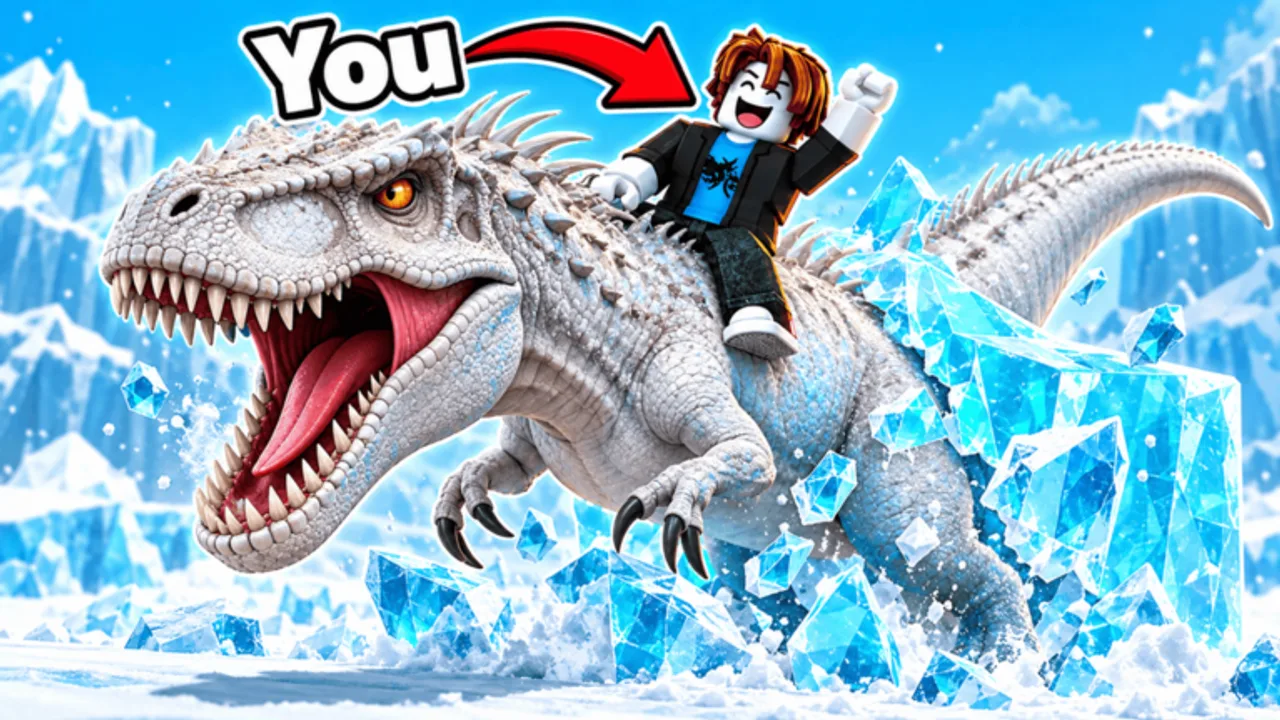
Promo codes are the quickest free boost in +1 Melt Ice for Dinos! by Cryosaur Studios, but only if you know exactly where the redeem UI lives. New players often melt ice for several minutes before noticing Settings at all. This guide walks through every redeem step on Desktop, Mobile, Console, and Tablet, explains why codes fail, and shows how Free Rewards fit the Fire → ice → dino → base money loop so you spend gifts on upgrades that matter.
The official experience is free-to-play on Roblox (Universe ID 10766176458, Place ID 135771443416012, released around September 12, 2026). Servers hold up to six players. Codes tracked on this wiki are case-sensitive and expire, so treat this page as the process manual and keep the live list on the Codes Hub open in another tab while you redeem.
Before you start
- Join the correct game title: +1 Melt Ice for Dinos! (not similarly named ice-melting experiences).
- Stay online long enough for the HUD and Settings panel to finish loading.
- Copy the latest working codes from the Codes Hub - as of late November 2026 that includes
THANKSGIVINGandWORLD2. - Decide what you need next (torch upgrade, early dinos, World 2 push) so Free Rewards do not sit unused.
If you are brand new, skim Getting Started first so you recognize Fire, frozen dinos, and the base carry path. Redeeming into an empty mental model makes rewards feel random; redeeming after you know the loop turns Free Rewards into a clear power spike.
Step-by-step redeem guide
1. Launch and load into a server
Open Roblox, search for +1 Melt Ice for Dinos, and join. Wait until you can click for Fire and see the main HUD. Redeeming during a half-loaded session is a common reason rewards seem missing - finish the spawn sequence first.
2. Open Settings (top-right)
Look at the top-right corner of the screen. Tap or click Settings. On touch devices, avoid fat-finger taps on nearby buttons; on console, highlight the Settings control with your stick or D-pad, then confirm. The panel should overlay the world without kicking you from the server.
3. Scroll to the codes box at the bottom
Settings contains more than audio and graphics. Scroll to the bottom until you see the codes input field. If you only change volume and close the menu, you never reach redeem. On smaller phone screens, keep scrolling past other toggles; the codes box sits at the lower end of the Settings content on purpose.
4. Enter the code exactly
Paste or type the code exactly as listed. Working examples:
THANKSGIVING- Free Rewards (added Nov 21, 2026)WORLD2- Free Rewards (added Nov 19, 2026)
Codes are case-sensitive. thanksgiving or World2 will usually fail even when the uppercase form still works. Do not add spaces before or after the string. Redeem one code at a time so you can tell which string succeeded.
5. Confirm redeem and verify rewards
Press the redeem / claim control next to the box. Watch for a success popup, inventory change, or currency tick. If nothing appears, rejoin once and check again before assuming the code is dead. Then close Settings and return to melting ice or upgrading torches with the new Free Rewards.
Platform notes
Desktop: Mouse scroll in Settings is reliable; paste from the clipboard to avoid typos.
Mobile / Tablet: Use paste when possible. Rotate to landscape if the codes box is hard to reach. Keep Roblox updated so UI scaling matches current HUD layouts.
Console: Type carefully with the on-screen keyboard. Double-check capitalization - console keyboards make case errors easy. After redeeming, exit Settings fully before moving your character so you do not cancel a pending UI action.
All four platforms are supported by the experience, and the Settings → bottom codes box flow is the same idea everywhere even when button glyphs differ.
Troubleshooting failed codes
Invalid / does not work
- Recheck capitalization and spelling against the Codes Hub.
- Confirm you are in +1 Melt Ice for Dinos by Cryosaur Studios, not a different ice game.
- The code may have expired. Codes expire; holiday and world codes are especially short-lived.
- Wait a minute after a major patch - Updates windows sometimes lag behind live redeem servers.
Already redeemed
Each code is typically once per account. If you redeemed WORLD2 last week, you cannot claim it again. Keep a short personal checklist of used strings so you do not burn time retyping them.
No reward popup
Rejoin the server, reopen inventory or currency UI, and verify Soft Rewards were applied quietly. Unstable connections during the redeem click can desync the popup even when the grant eventually lands.
Cannot find the codes box
You are likely still in the upper half of Settings. Scroll to the bottom. If the HUD looks different after an update, check Updates for UI notes, then return here - the redeem location has remained Settings → bottom codes box in community reports.
How Free Rewards fit progression
The core loop is simple but addictive: generate Fire by clicking, melt ice to free frozen dinos, carry them to your base, and let those dinos earn money offline. Spend money on stronger torches and upgrades so you can clear deeper zones with rarer dinos. Rebirth resets Fire-related progress while keeping money and dinos, which is how long-term power scales.
Free Rewards from codes accelerate the early and mid game. Use them to:
- Buy the next torch tier sooner so melt time drops.
- Stabilize base income before a long offline session.
- Soften the jump into World 2 content when Fire costs and travel distances rise.
- Reduce frustration on six-player servers where you want efficient sessions between school or work.
Codes will not replace learning good carry routes or rebirth timing, but they remove busywork. After you redeem, follow the upgrade order in Getting Started instead of impulse-buying every shop entry.
Building a redeem habit
- Bookmark the Codes Hub and open it whenever you see an event trailer or holiday post.
- Redeem new codes at the start of a session before you tunnel into grinding.
- After redeeming, glance at Updates so you know if a world unlock or admin event changed priorities.
- Never share executor or account-login “code” pages that ask for your password - official redeem never needs your Roblox password outside Roblox itself.
Related pages
- Codes Hub - live working and expired tables
- Getting Started - Fire, dinos, upgrades, rebirth
- Updates - when new codes and worlds usually appear
Master Settings once and every future drop takes under a minute. Keep this redeem guide handy, copy codes carefully, and spend Free Rewards on the upgrades that shorten your path to rarer dinos.
Frequently Asked Questions
Quick answers for Melt Ice for Dinos players.
Where is the codes box in +1 Melt Ice for Dinos?
Open Settings from the top-right of the HUD, then scroll to the bottom of the Settings panel. The codes input sits at the lower end of that menu.
What should I type when redeeming?
Enter the exact case-sensitive string from the Codes Hub - for example THANKSGIVING or WORLD2 - with no extra spaces, then confirm redeem.
Can I redeem codes on mobile or console?
Yes. Desktop, Mobile, Console, and Tablet all use the same Settings → bottom codes box flow. Paste when you can to avoid typos.
What do I do if a code fails?
Check spelling and capitalization, confirm you are in the correct game, rejoin once, and compare against the live working list. Expired or already-redeemed codes will not grant again.
When should I redeem new codes?
Redeem at the start of a play session before heavy grinding, then spend Free Rewards on torch upgrades or progression goals from the Getting Started guide.